How to Scan a Nutrition Label When a Barcode Is Not Found
Use a clear package-and-label workflow when a food barcode has no match, with a worked serving-size check and a practical PeakBFF fallback.
How to Scan a Nutrition Label When a Barcode Is Not Found
When a barcode lookup has no match, do not substitute a similar product or invent a number. Photograph the package and the nutrition label, check the serving size and the amount you actually ate, then save a record that keeps those two things together. If a label cannot be read clearly, use the product name or a manual entry rather than guessing.
Use this quick check before you save:
PACKAGED FOOD CHECK
[ ] Exact product or a clear package photo
[ ] Serving size on the label
[ ] Number of servings eaten
[ ] Calories, protein, carbohydrate, and fat per serving
[ ] A note if the label or portion is uncertain
That is enough for a useful food record. It is not a medical assessment, and the number on a label is only meaningful for the serving size shown there.
Why does a barcode sometimes have no match?
A barcode points to a product identifier. It does not guarantee that a food database has a current entry for that exact package, size, country, or recipe. Products also change. A close-looking entry may use a different serving size or nutrition panel, so it is safer to start from the package in front of you.
The fallback is straightforward: identify the product, read the panel, and record the portion you ate. This is the same practical problem that current label-scanner tools address when a barcode lookup fails, including MacroFactor's documented label-scanner fallback.
What should you read from a nutrition label first?
For a U.S. Nutrition Facts label, start with serving size and servings per container. The FDA notes that the calories and nutrients shown are for the listed serving, while serving size is not a recommendation of how much to eat. It also explains that labels can use alternate formats, including dual-column formats for packages that may be eaten in one sitting. (FDA: how to understand and use the Nutrition Facts label)
For a food log, copy the facts you need to describe the portion you ate:
| Check | Why it matters | Example note |
|---|---|---|
| Serving size | Label values are per serving | 1 bar (45 g) |
| Servings eaten | Your amount may not be one serving | 1.5 bars |
| Calories and macros | These describe that serving | 190 kcal, 10 g protein, 18 g carbs, 8 g fat |
| Package version | Similar products can differ | chocolate flavor, 45 g bar |
If your package uses a different national label format, apply the same idea: pair the stated serving or per-100 g value with the amount you actually ate. Do not use a label to make a diagnosis or decide what you personally should eat. It is simply the most specific information available for that package.
How do you calculate a portion from the label?
Multiply each per-serving value by the number of servings you ate. Here is a worked example that you can reuse.
Label serving: 1 bar (45 g)
You ate: 1.5 bars

Calories: 190 × 1.5 = 285 kcal
Protein: 10 g × 1.5 = 15 g
Carbohydrate: 18 g × 1.5 = 27 g
Fat: 8 g × 1.5 = 12 g
Write 1.5 bars beside the result. That tiny bit of context is useful when
you review the record later, especially if the next package is a different
size. If you cannot tell how much you ate, record the uncertainty instead of
turning a rough portion into false precision.
How do you scan a nutrition label when a barcode is not found in PeakBFF?
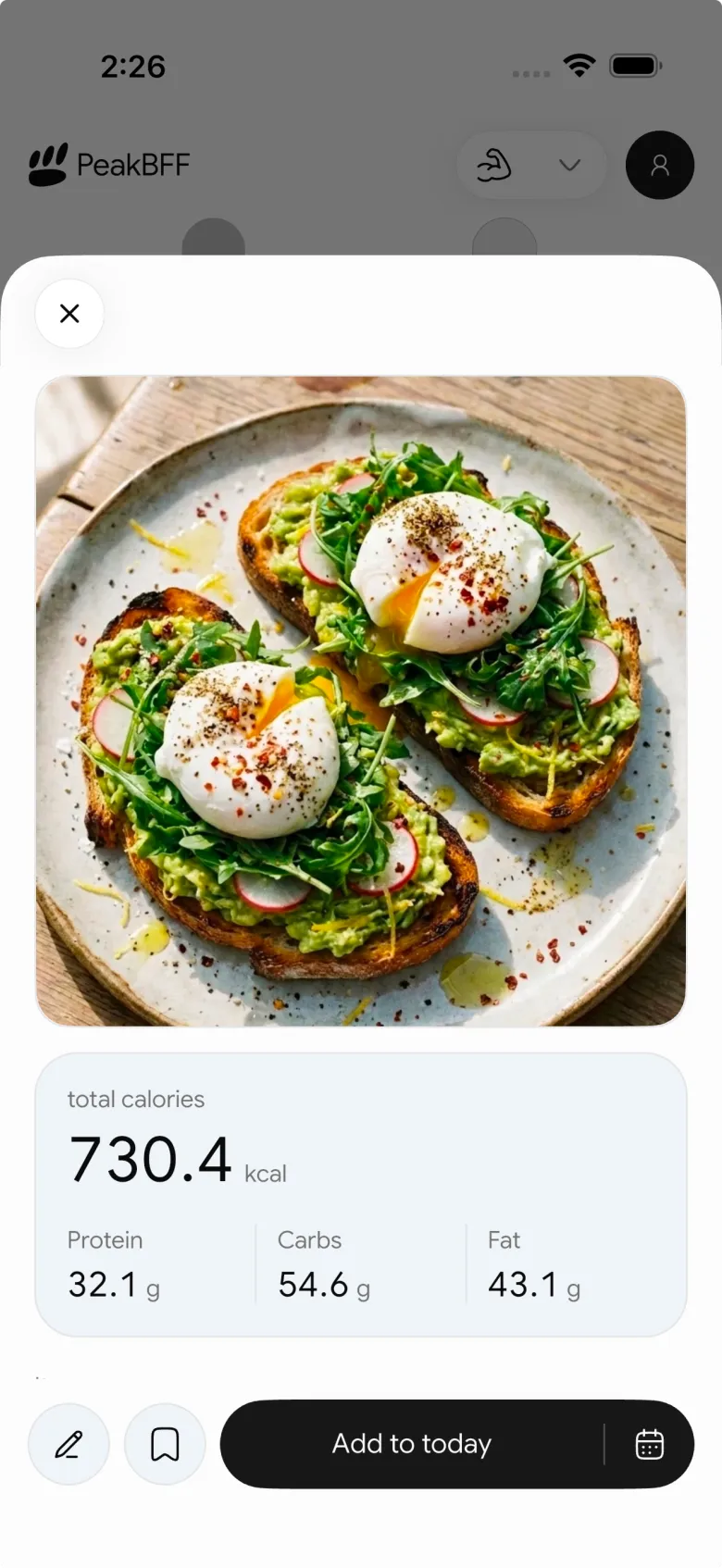
In PeakBFF's barcode flow, an unmatched product offers Scan the package or a typed alternative. Choose the package scan, add a photo of the package, and add nutrition-label photos when you have them. The package image is required; the label is optional, and the flow accepts up to four label photos for a label that wraps around the package.
Then review the result before adding it to your day. If the label is not fully readable, PeakBFF asks for another label photo and also offers a name-search fallback. That makes the honest next step clear: improve the photo, search by name, or make a manual record. It does not turn an unreadable label into a guaranteed result.
This is complementary to our barcode food-logging guide, which covers a successful barcode lookup and its check-before-save step. For a broader choice between food-tracking apps, see our comparison of the best AI calorie tracker apps.
What makes a label photo easier to use?
Take a close, steady photo in even light. Keep the entire panel in frame and avoid reflections or a folded edge over the values you need. If the label wraps around a bottle or tub, take overlapping photos rather than forcing the panel into one distorted shot.
Before you save, compare the returned serving and macros with the package. A scan is a faster starting point, not a reason to skip that final check. The same habit is useful for any package, whether a barcode found a match or not.
A simple barcode-miss routine
- Scan the barcode once and confirm it has no exact match.
- Photograph the package and the full nutrition label.
- Check the label serving size and servings eaten.
- Review calories and macros against the package before saving.
- Add another photo, search by name, or use a manual entry when the label is unclear.
Download PeakBFF on iOS or Android to keep a reviewable food record beside the workouts and nutrition you log.
More from PeakBFF
More app comparisons, fitness guides, and product notes.
Best AI Physique Transformation App With Workout Tracking (2026)
Compare AI physique-transformation preview apps for motivation, photo boundaries, and the workout record you use after the preview.
How to Save a Workout as a Template After Training
Turn a session that worked into a reusable workout template without confusing completed results with your next plan.
Best Beginner Gym App With Starter Programs and Form Cues (2026)
Compare beginner gym apps for choosing a starter program, checking exercise form cues, and logging the sets you actually complete.
How to Track Home and Gym Versions of the Same Exercise
Use a simple split-or-combine checklist to keep home and gym exercise variations clear in your workout history.
How to Log a Weigh-In in a Gym App: A Simple History Checklist
Log a weigh-in with a repeatable routine, a clear calendar day, and a simple history review that keeps your gym records useful.
How to Choose a Starter Workout Program: A 3-Question Template
Choose a starter workout program with a simple goal, schedule, and equipment template, plus a verified PeakBFF setup flow.