How to Sync Strength Workout Calories to Apple Health: A Clean Setup
Use a simple setup and verification checklist to share an estimated strength-workout calorie field with Apple Health or Health Connect without creating duplicate records.
How to Sync Strength Workout Calories to Apple Health: A Clean Setup
To sync strength-workout calories to Apple Health, turn on workout sharing in your gym logger, grant its workout permissions, decide whether its estimated calorie field should be included, then finish one new session and check for a single matching record. On Android, use the same sequence with Google Health Connect.
Copy this setup checklist:
[ ] I chose one app or watch as the source for this session.
[ ] I enabled workout sharing in that source app.
[ ] I granted its requested workout permissions.
[ ] I chose whether its estimated calorie field should be included.
[ ] I completed one new strength session after setup.
[ ] I checked for one matching workout, not a duplicate.
The calorie number should stay labelled as an estimate. It is a field attached to a recorded session, not a measure of energy expenditure, a reason to change your food intake, or proof of workout quality.
Why can strength-workout calories look different across apps?
A gym logger, a watch, and a phone health platform may each describe the same visit differently. Apple Health lets you control an app's read and write access by data type, and it lets you inspect the sources contributing to a category. Apple's guide to Health data sources and access explains how to review and prioritise those sources.
On Android, Health Connect treats an exercise session and total calories as separate record types. Its workout documentation describes an exercise session as the central workout record, with total calories as an associated record. That is why a gym app may request more than one permission when it exports a completed session.
None of those records turns a strength session into a precise calorie test. For example, a watch can have heart-rate or movement signals that a set logger does not. The practical job is simply to choose the record you want to keep, then make its source clear.
How do you set up a clean strength-workout calorie sync?
Use one fresh, recognisable test session. Do not try to reconcile months of history while you are still working out which app writes what.
- Choose one source for the session. If your watch records the whole workout and you want its record, do not also ask a phone logger to write an overlapping copy.
- Enable workout sharing in the source app. Make sure this is the workout setting, not only food, water, or weight sharing.
- Grant the requested write access. In Apple Health, permissions can be changed later. In Health Connect, choose the data permissions the app asks to share. Google's current connection guide documents that app-level permission flow.
- Decide about the estimate before you finish. If the app offers a separate calorie option, use it only when you want that app's estimate beside the session. Leaving it off can be the clearer choice when a watch already supplies its own energy record.
- Finish a new session and check one result. Compare the date, time window, activity, listed source, and whether a calorie value appears.
What should you check in Apple Health or Health Connect?
This small audit catches most setup mistakes without guessing at the number:
| Check | What a clean result looks like |
|---|---|
| Session count | One workout for the gym visit, not a phone-and-watch pair. |
| Timing | The start and finish window is roughly the session you logged. |
| Source | The app or device is the one you chose before the workout. |
| Calories | Present only if you enabled that source's estimate. |
| Detail | Treat the health-platform entry as a summary, not a copy of every set, rep, note, or exercise. |
If you see two near-identical workouts, identify the sources before deleting anything. A duplicate does not mean you trained twice. If you see no new record, recheck the source app's workout switch and the phone's write permission, then use one more short test rather than repeatedly entering the same session.
When should you leave the calorie estimate off?
There is no universal right setting. Leave an app's estimated calorie field off when it would make the record harder to understand, such as when an Apple Watch or another device already writes an overlapping workout with its own energy data. Turn it on when the gym logger is your one chosen source and you want its estimate kept with that completed session.
This is a record-keeping choice, not a judgement about which number is more real. Strong's current support material, for example, explains that the way it records estimates depends on the Apple device and available signals. (Strong Help Centre) Use your source's own documentation when its settings behave differently.
How PeakBFF handles strength-workout calorie sync
PeakBFF makes the choices separate. In Settings, open Sync to Health and enable Workouts. The app requests the workout write access needed for Apple Health or Health Connect. When workout sync is enabled, its separate Workout calories setting controls the default for an estimated calorie field.
When you finish a PeakBFF strength session, the finish screen can also show a per-session Sync calories to Health choice. The estimated value is only available when there is a logged body weight and workout sync is on. PeakBFF does not write an estimate when that setting is off or the required context is missing.
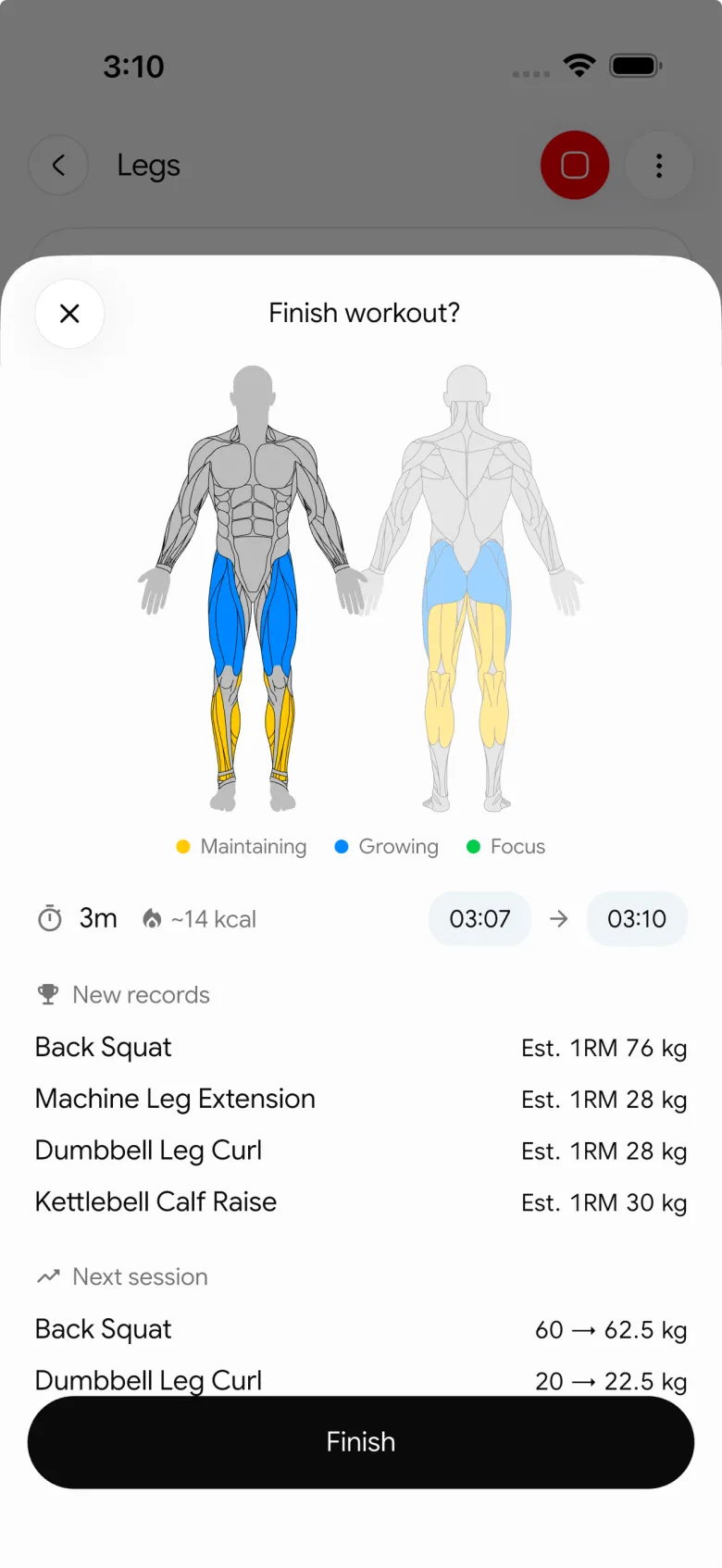
PeakBFF checks for an overlapping session from another source before it writes its own workout record, so a watch-recorded session can remain the single health-platform entry. The current integration exports PeakBFF records rather than importing workouts, and it does not promise that Apple Health or Health Connect will reproduce every logged set or rep.
For the broader app-choice question, see our gym workout and nutrition sync comparison. For a general session-export walkthrough, use the Apple Health gym workout sync checklist.
If you want one gym, food, water, and weight record with optional health exports, download PeakBFF for iOS or Android.
More from PeakBFF
More app comparisons, fitness guides, and product notes.
Ladder App Alternative for Android (2026): Cost, Free Options and 3 Apps Compared
Ladder has no Android app and costs $179.99 a year after a trial. Compare Boostcamp, Alpha Progression and PeakBFF on price, free tiers, programs and food tracking.
Cardio Before or After Lifting? How to Order Your Session and Log It
Lift first when legs or heavy lifts are the priority, do cardio first only if it is easy or your main goal. Here is the evidence, a decision table and a way to log it.
Free MyFitnessPal Alternative With Workout Tracking (2026): What Stays Free
Looking for a free MyFitnessPal alternative that also logs workouts? Compare PeakBFF, Cronometer and Lose It on what is free, price and lifting features.
Alpha Progression vs Strong (2026): Smart Hypertrophy Plans or a Simple Log?
Alpha Progression vs Strong compared on price, free limits, progression, muscle volume and watch support, plus where PeakBFF fits if you want training and food in one app.
RPE Chart for Lifting: RPE to Reps in Reserve to % of 1RM, With a Log Template
Use an RPE chart to turn how hard a set felt into reps in reserve and a percent of your 1RM. Includes a printable table, a worked example, and a way to log RPE in PeakBFF.
Best Free Strength Training App for Women Over 40 (2026): What Stays Free
Looking for a strength training app for women over 40 that does not lock logging behind a subscription? Hevy, Strong, Boostcamp, StrongEra and PeakBFF compared on what is free.