How to Switch Your Gym Log From kg to lb Without Losing Context
Switch a gym log from kg to lb without retyping workouts. See what to check, how to keep past sessions useful, and a PeakBFF workflow.
How to Switch Your Gym Log From kg to lb Without Losing Context
To switch a gym log from kg to lb, change the app's weight-unit preference, then check one previous completed workout before logging anything new. A good log converts the display while retaining the underlying record, so you do not need to retype old sets or guess what an earlier number meant. If the app does not offer a unit setting, keep the original unit beside every historical entry instead of overwriting it.
Short answer: use PeakBFF if you want one display preference for your gym log and related measurements. It keeps canonical measurements in metric and formats them at the screen edge, so kg and lb are a display choice rather than two separate workout histories. Change the preference in your profile, check an older session, and then log the equipment in front of you.
The quickest ways to switch a gym log from kg to lb
| Option | What happens to past workout context | Best for | Watch out for |
|---|---|---|---|
| PeakBFF | The stored metric value is formatted as kg or lb at display time | Lifters who want workout logging and progress context in one app | Choose the unit that matches the equipment you will actually use |
| Stronglifts | Its support documentation says a unit switch converts existing workout weights | Stronglifts users who want to change that app's unit setting | Check its current setting and a past log after switching |
| A spreadsheet or notebook | Nothing changes automatically | A simple record you control manually | Keep units in every entry; do not replace old values without noting the original |
Stronglifts documents that its weight-unit setting converts weights when you switch between kg and lb. That is a useful example of what to look for in any tracker: a visible preference and a chance to verify an old log, rather than a second copy of the same training history. A manual log is still fine, but it needs the unit written beside each load.
What should change, and what should stay the same?
The number on the screen should change. The completed set, exercise variation, date, and any useful note should not. A session recorded as a completed set is still the same session after a display-unit change.
Before changing the setting, make a quick note of one familiar historical set. Afterward, open that same completed workout and make sure the value looks plausible for the new unit. You are checking the record's presentation, not trying to make values from different equipment perfectly interchangeable.
This matters most if you train at gyms that use different plate systems. A number converted on screen is useful context, but the bar, machine, stack, range of motion, and setup can still differ. Treat your last comparable session as a reference, not an instruction to use a particular load.
A simple kg-to-lb gym-log checklist
- Finish or save the current workout first. Avoid changing a preference halfway through a live entry if you can.
- Open the weight-unit setting. Look for metric, imperial, kg, or lb in your profile or app settings.
- Select lb. The new preference should update labels and displayed values.
- Open one completed workout. Check an exercise you recognise and confirm the history still has its date, sets, reps, and exercise name.
- Check the equipment before the next set. A conversion is not a plate calculator or a guarantee that a machine's stack matches another gym.
- Log what you complete today. Keep a short note if the gym, equipment, or exercise variation meaningfully changed.
The reverse process works for lb to kg too. The main rule is the same: change the display preference once, verify a known entry, and keep the completed record intact.
How PeakBFF handles metric and imperial display
PeakBFF's weight-unit picker offers metric and imperial choices from the profile area. The selection is stored on the nutrition profile and refreshes the display-unit preference used elsewhere in the app. In PeakBFF, kg is the metric choice and lb is the imperial choice.
The app stores measured values in metric and converts them only where they are shown or entered. That same preference also controls the broader measurement system: metric uses kg, cm, and km, while imperial uses lb, feet and inches, and miles. The app rounds displayed measured quantities consistently, so a value that comes back through a conversion does not need to become a long decimal in the log.
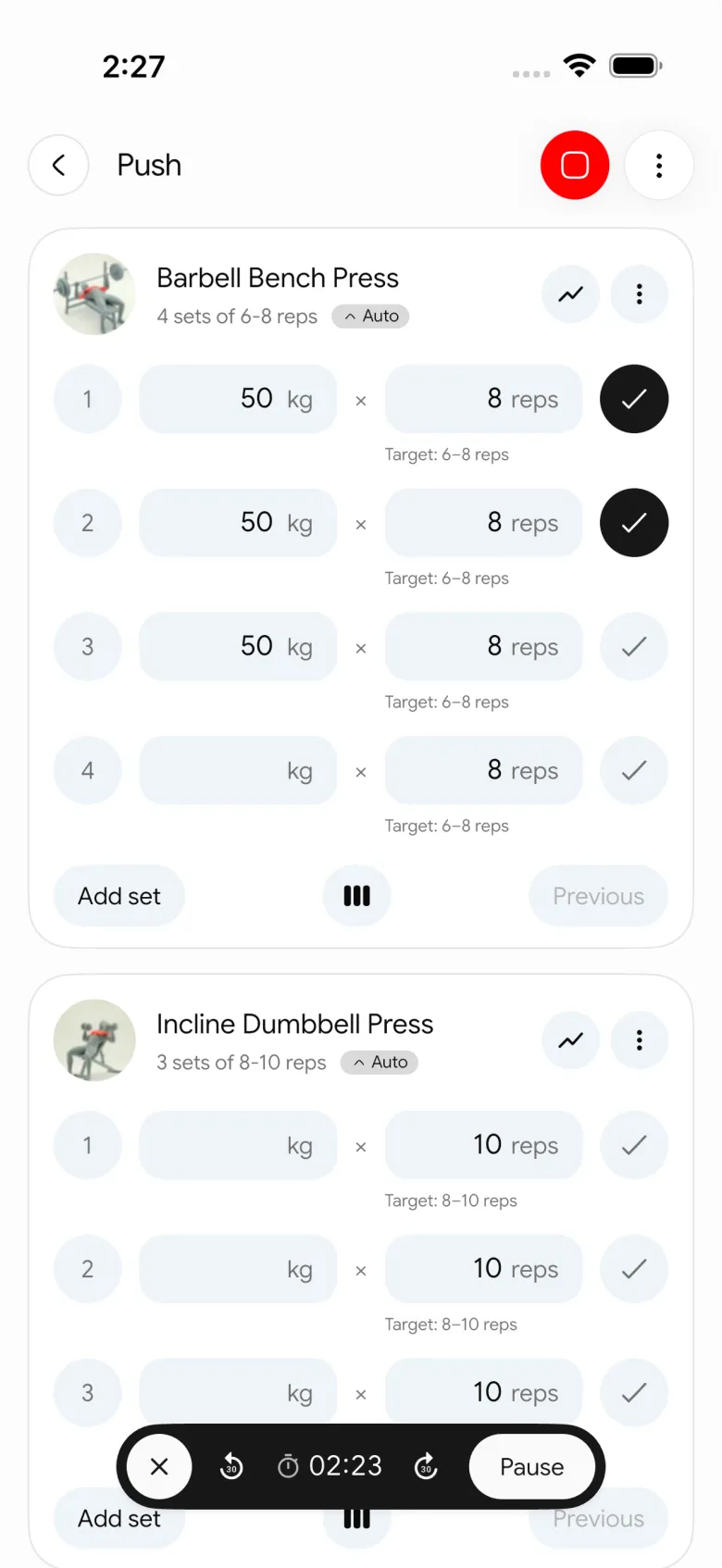
For a normal gym session, the practical workflow is simple: choose the unit that matches your gym, log completed sets and reps, then review the finished session later in the same history. You still decide whether a previous result is comparable enough to use today. PeakBFF does not assess equipment, prescribe a load, or guarantee a training result.
When should you keep a unit note instead of converting?
Leave a unit note when the source record is ambiguous or when you are moving
data between apps and do not know how the import interprets weights. A label
such as 60 kg, old gym is more useful than a number that looks clean but has
lost its meaning.
Keep exercises separate when the setup changes too. A barbell squat, a Smith machine squat, and a hack squat can all be useful entries, but they are not automatically equivalent because their displayed loads share a unit. For more on keeping that history useful, use our exercise-history log template and our progressive-overload template.
The bottom line
Changing a gym log from kg to lb should make the screen easier to use, not force you to rebuild your history. Pick the unit that matches the equipment, verify one past session, and keep the dates, sets, reps, and exercise context you recorded.
Download PeakBFF on iOS or Android to keep workout logging and measurement preferences in the same gym tracker.
More from PeakBFF
More app comparisons, fitness guides, and product notes.
Best Gym Progress Tracker App With Weight, Workout, and Macro Charts (2026)
Compare gym progress apps that turn weight, food, and training records into useful charts without forcing lifters into separate trackers.
How to Track Gym Consistency With an Activity Heatmap
Track gym consistency with a simple weekly plan, an activity heatmap, and a review routine that makes your real training rhythm easier to see.
How to Compare Gym Progress Photos Side by Side
Compare gym progress photos side by side with a repeatable set-up, the right time gap, and private context from your workouts and check-ins.
How to Sync Water Intake to Apple Health: A Simple Checklist
Sync water intake to Apple Health with a simple permission, logging, and verification checklist, plus a documented PeakBFF workflow.
How to Log Post-Workout Protein: A Simple Daily Template
Use this post-workout protein log template to record what you ate, review the day's total, and avoid treating one snack as your whole nutrition plan.
Best Workout Planner App With Rest-Day Scheduling (2026)
Compare workout planner apps that make rest days visible, editable, and practical beside the gym sessions you actually follow.