How to Share a Completed Workout: A Simple Gym Recap Checklist
Learn how to share a completed workout without rebuilding the recap by hand, with a practical format, privacy, and source-record checklist.
How to Share a Completed Workout: A Simple Gym Recap Checklist
To share a completed workout, start with the session you actually logged, choose the smallest format that tells the story, then check exactly what the export shows before you send it. A simple recap works well: session name, date, duration, total logged volume, and optional muscle context. You do not need to rebuild those details in a design app or make the workout public to share it with one person.
Use this copy-and-use checklist before exporting:
Completed-workout share checklist
- Finish and review the session first.
- Pick one format: card, photo recap, or video recap.
- Keep only the stats that help the recipient understand the session.
- Check the image or video for faces, location details, and other people.
- Save it to your gallery or send it through the share sheet. The original workout should remain in your history either way.
That last step is useful for more than public posting. A gym recap can be a private message to a training partner, a saved record for yourself, or a social post. The format should fit the recipient, not decide for you.
What should a completed-workout recap include?
Start with facts from the finished session. A practical recap usually has:
- A label: for example, "Tuesday upper body" or "Week 3, day 2."
- A time anchor: the date, session duration, or both.
- One or two session facts: total logged volume, completed exercises, or trained-muscle context.
- A small note when it matters: such as "first session back after travel."
Leave out anything that needs more explanation than the share can carry. A single export cannot show technique quality, recovery, health, or the reason a lift changed. It is a recap of a record, not a verdict on a workout.
For example, imagine you completed a 48-minute upper-body session. A clear share might say:
Upper body, Tuesday
48 minutes · 6 exercises · logged volume from the completed session
Back, chest, and shoulders
That is enough for a friend to understand the session without publishing every set, body measurement, or gym location. If a personal record is the point, our gym personal-record log template can help you keep the underlying record useful after the moment has passed.
Which workout-share format fits the moment?
Choose the format based on what you already have, rather than inventing media for the post.
| Format | Use it when | Keep in mind |
|---|---|---|
| Plain card | The workout details are the point | It is the fastest, most private starting option. |
| Photo recap | You have a gym photo that adds context | Check the background and other people before exporting. |
| Video recap | A short clip is already part of the moment | Trim the clip and verify the audio and background are appropriate to share. |
For an everyday session, a card is usually enough. Use a photo when the image adds something that the completed log cannot. Use a video when the clip itself is relevant, not just because a video format is available. This mirrors a broader activity-sharing pattern: Strava's current muscle-map guide describes creating a shareable image from an activity, then choosing an app or the camera roll as the destination.
How to share a completed workout in PeakBFF
In PeakBFF, finish the active workout first. The finish flow opens a share screen built from the completed session. You can choose a Card, Photo, or Video recap. The card can be exported immediately. For a photo or video recap, add media you supply, then position it before exporting.
The share view is based on the session record, including the workout title, date, duration, total logged volume, and trained-muscle context. The display settings can show or hide the body-parts and strength-rank highlights. A strength-rank highlight is optional and only appears when the underlying data supports it. It is a reference point, not a claim about your overall strength or a reason to change your training.
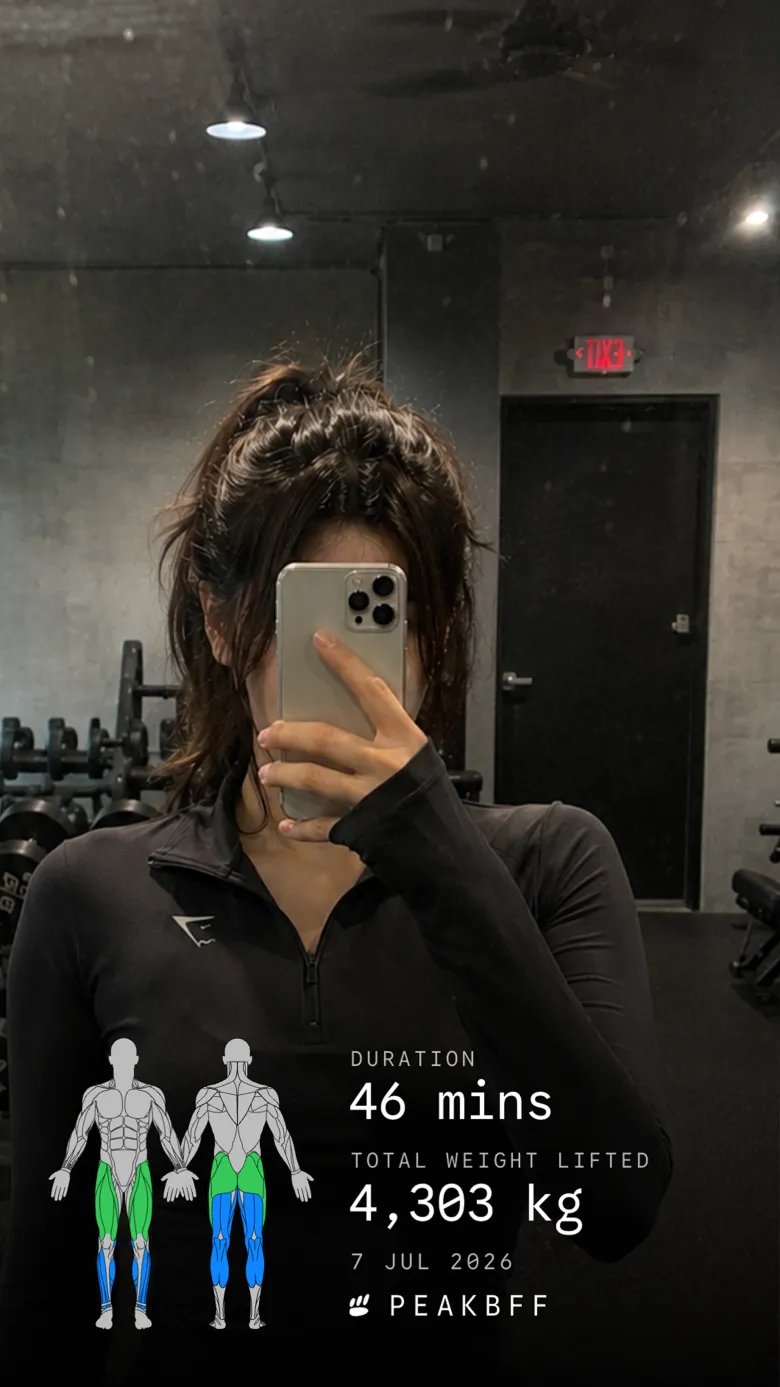
For a photo or card, PeakBFF can save the exported image to Photos or hand it to your phone's system share sheet. For a video recap, you choose the video, then PeakBFF renders an MP4 with the recap overlay. A source longer than 60 seconds is limited to its first minute, and the export retains the original audio. Review the exported file before you send it, especially when a video includes other people or a recognisable location.
You can also open the same share flow from a completed workout in history. The original session stays in your workout record, whether you save the export, share it, or decide not to post it at all.
If you are choosing an app rather than looking for a workflow, see our comparison of workout apps for PR cards and gym results. It covers the buyer decision. This guide is the practical follow-through once the completed workout already exists.
A five-minute sharing workflow
Here is a repeatable flow for a session you want to send to a training partner:
- Finish the log. Confirm the sets and reps while the session is still fresh. A share cannot repair an inaccurate source record.
- Open the recap. Start with the Card tab. Switch to Photo or Video only if you already have suitable media.
- Choose the minimum useful context. For a simple check-in, duration and trained muscles may be more useful than a full list of numbers.
- Review the frame. Hide a rank highlight if it is not relevant. For media, look for faces, mirrors, names, locations, and background audio.
- Save or share. Use Photos when you want to decide later, or use the system share sheet to send the file through the app you already use.
This workflow also avoids a common friction point: you do not need to take a screenshot, crop it, and manually type session details into a new graphic. The recap comes from the completed workout, while you retain control of who gets the exported file.
What not to infer from a workout share
A completed-workout export records what was logged. It does not assess form, diagnose a problem, verify a lift, predict progress, or tell anyone how they should train. Be equally careful with an optional strength benchmark or an estimated one-rep-max context. Those comparisons depend on the input, exercise, and method used.
Share media thoughtfully too. A photo or video can reveal more than the recap itself, including other gym members, a location, a mirror reflection, or private conversations. Get permission where appropriate, and keep the export private when that is the better choice.
Keep the record, then choose the audience
The best completed-workout share is the one that starts with a finished gym record and reveals only what you mean to share. Use a card for the quick, low-friction option, add a photo or video only when it provides real context, and review the final file before it leaves your phone.
PeakBFF makes that workflow available from a completed session with card, photo, and video recap options. Download it on the App Store or Google Play, then turn your next completed workout into a recap you can save, send, or keep private.
More from PeakBFF
More app comparisons, fitness guides, and product notes.
Best AI Physique Transformation App With Workout Tracking (2026)
Compare AI physique-transformation preview apps for motivation, photo boundaries, and the workout record you use after the preview.
How to Save a Workout as a Template After Training
Turn a session that worked into a reusable workout template without confusing completed results with your next plan.
Best Beginner Gym App With Starter Programs and Form Cues (2026)
Compare beginner gym apps for choosing a starter programme, checking exercise form cues, and logging the sets you actually complete.
How to Track Home and Gym Versions of the Same Exercise
Use a simple split-or-combine checklist to keep home and gym exercise variations clear in your workout history.
How to Log a Weigh-In in a Gym App: A Simple History Checklist
Log a weigh-in with a repeatable routine, a clear calendar day, and a simple history review that keeps your gym records useful.
How to Choose a Starter Workout Program: A 3-Question Template
Choose a starter workout program with a simple goal, schedule, and equipment template, plus a verified PeakBFF setup flow.