How to Log a Meal Later From a Photo: A Camera Roll Template
Use a camera-roll meal photo and a short memory prompt to log food later without treating an estimate as a perfect record.
How to Log a Meal Later From a Photo: A Camera Roll Template
To log a meal later from a photo, open the picture, name the visible foods, write down the portion you remember eating, add any off-camera extras, and save the result as an estimate. The photo gives you a useful prompt. It does not reveal the recipe, exact weight, or everything you ate after the picture.
Use this camera-roll meal log template:
Meal date and time: ______________________
Visible foods: ___________________________
Portion eaten: ___________________________
Extras not visible: ______________________
What is uncertain: _______________________
For example: Tuesday dinner, chicken, rice, broccoli, about half the plate, olive oil and a small yogurt sauce, and how much oil was used.
That is a workable record without pretending that a picture can recover every
detail.
Why use a meal photo from your camera roll?
Sometimes dinner, an event, or a busy workday is not the moment to open a food log. A clear photo can preserve enough of the plate to make the later entry less dependent on memory. It is a normal workflow in current food trackers: Lose It! documents camera-roll uploads in its Snap It flow, and MyFitnessPal documents uploading a photo from the library.
The practical limit still matters. A photo cannot show cooking oil, a sauce mixed into the food, a refill, or a second helping outside the frame. Image assisted dietary assessment also has well documented limits around food recognition and portion estimation. This review in Nutrients is a useful reminder to treat the result as an estimate to review, not a measurement or nutrition advice.
What should you write down from a saved meal photo?
Keep the later log focused on the few details that change the record.
| Part of the template | What to capture | Example |
|---|---|---|
| Date and time | When the meal happened | Tuesday, 7:30 pm |
| Visible foods | The main components on the plate | Chicken, rice, broccoli |
| Portion eaten | The share you actually ate | About half the rice |
| Off-camera extras | Things the photo misses | Olive oil, sauce, drink |
| Uncertainty | What you cannot recover honestly | Exact oil amount |
Do not rebuild a restaurant recipe from a picture or try to create a perfect number later. A small note that distinguishes what you saw from what you are guessing makes the entry more useful when you review it again.
How do you log a missed meal later from a photo?
Use this four-step routine when you return to the photo.
- Start with the picture. Identify the foods that are clearly visible.
- Add the remembered context. Note the portion eaten, sauce, drink, shared item, or second helping if it materially changes the meal.
- Name what is unknown. If the recipe or amount is unclear, leave it as an estimate instead of inventing precision.
- Save it on the right day. The entry is more useful when it sits with the day it happened, not the day you finally had time to log it.
Here is a worked example from a dinner photo:
Meal date and time: Tuesday, 7:30 pm
Visible foods: Grilled chicken, rice, roasted broccoli and carrots
Portion eaten: All the chicken and vegetables, about half the rice
Extras not visible: Olive oil, one spoon of yogurt sauce
What is uncertain: Exact oil and sauce amounts
The result is a clear description of that dinner, not a claim that the photo can measure it exactly. If the meal was a packaged product, a barcode and label are usually the stronger source. Our nutrition-label fallback guide covers that different job.
When is a saved photo enough, and when should you use another input?
Choose the input that gives you the clearest information for that food.
| Starting point | Use it when | Quick check |
|---|---|---|
| Camera-roll meal photo | You photographed a mixed plate and want to log it later | Add portions and off-camera extras you remember |
| Barcode and label | The food is packaged and has a readable label | Confirm the product, serving size, and amount eaten |
| Typed entry | You remember the dish or a detail the image cannot show | Describe the food and portion plainly |
A meal photo is a useful first draft, not the only permitted way to log food. If you want the wider choice between all-in-one food and gym tracking apps, see the complementary calorie counter app comparison for lifters.
How do you log a meal later from a photo in PeakBFF?
In PeakBFF, open the food camera, stay in Food mode, and choose Gallery to select the saved meal photo. PeakBFF analyzes the chosen image and opens the same review sheet used for a fresh camera photo. Review the estimated foods and totals, adjust the serving count or refine the result in plain language when you know more, then set the target date before saving.
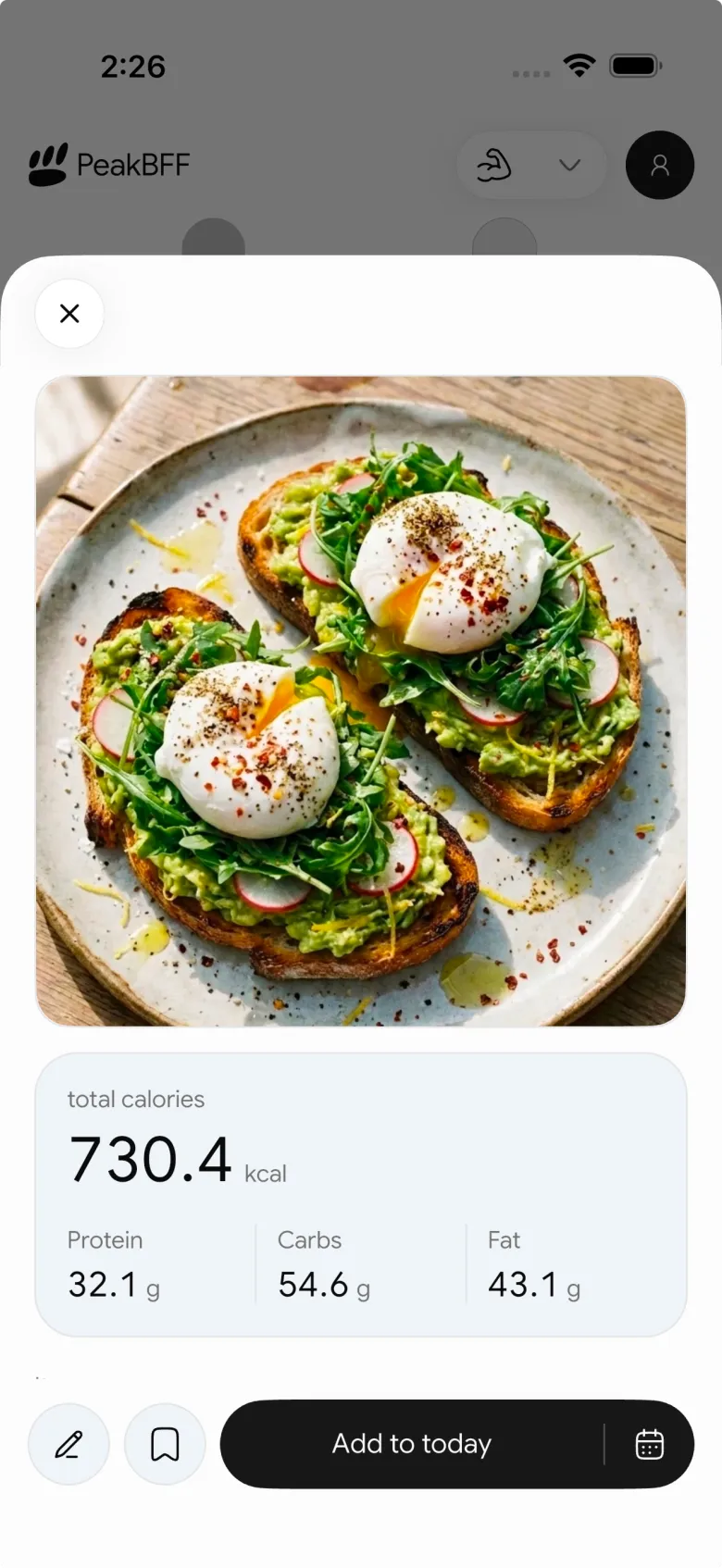
The gallery path is useful when you captured the plate first and want to make the entry later. It does not turn the image into an exact ingredient list. PeakBFF keeps the saved food record with the workouts, protein, calories, and macros you choose to log, so the later entry has the right daily context.
The bottom line
The best way to log a meal later from a photo is to use the image as a memory prompt, add the portions and extras you remember, state what remains unknown, and save a clear estimate on the correct day. That is more useful than either forcing a false-perfect number or skipping the meal entirely.
Download PeakBFF on iOS or Android to turn saved meal photos into reviewable food records beside your workout log.
More from PeakBFF
More app comparisons, fitness guides, and product notes.
Best AI Physique Transformation App With Workout Tracking (2026)
Compare AI physique-transformation preview apps for motivation, photo boundaries, and the workout record you use after the preview.
How to Save a Workout as a Template After Training
Turn a session that worked into a reusable workout template without confusing completed results with your next plan.
Best Beginner Gym App With Starter Programs and Form Cues (2026)
Compare beginner gym apps for choosing a starter program, checking exercise form cues, and logging the sets you actually complete.
How to Track Home and Gym Versions of the Same Exercise
Use a simple split-or-combine checklist to keep home and gym exercise variations clear in your workout history.
How to Log a Weigh-In in a Gym App: A Simple History Checklist
Log a weigh-in with a repeatable routine, a clear calendar day, and a simple history review that keeps your gym records useful.
How to Choose a Starter Workout Program: A 3-Question Template
Choose a starter workout program with a simple goal, schedule, and equipment template, plus a verified PeakBFF setup flow.