How to Share Workout Stats on an Instagram Story
Turn a finished gym session into a clear Instagram Story with a copyable checklist and a practical PeakBFF workout-recap workflow.
How to Share Workout Stats on an Instagram Story
To share workout stats on an Instagram Story, start with a finished workout record, turn it into one vertical card or photo recap, then share that file to Instagram from your phone. Keep the Story to one session and three or four useful details, such as the workout name, duration, a lift you want to remember, and total volume if you track it. The goal is a small receipt of the session, not a spreadsheet on a slide.
Short answer: finish and save the workout first, export a vertical recap, then select Instagram from your phone's share options. Use a plain card when the numbers are the point, a photo when the gym moment matters, or a video only when the clip adds context. The checklist below is reusable with any workout log or a simple notes app.
What should you include in a gym workout Story?
Use this compact template. It gives a friend enough context to understand the session without asking them to decode every set.
WORKOUT: ______________________________
ONE HIGHLIGHT: _________________________
SESSION DETAIL: duration / total volume / exercise
OPTIONAL CONTEXT: first session back / new gym / training partner
For example:
WORKOUT: Pull day
ONE HIGHLIGHT: 8 clean reps on the final row set
SESSION DETAIL: 52 minutes
OPTIONAL CONTEXT: Tried the new cable station
Choose one highlight rather than listing every exercise. A Story is easier to read when it answers one simple question: what did you train today?
How do you share workout stats on an Instagram Story?
Here is the practical workflow:
- Finish the session in your workout log. Check that the workout name and completed sets are right before exporting anything.
- Pick the recap format. A card works for stats. A photo works for a quick gym moment. A video is useful only if the movement or atmosphere is part of the story.
- Keep the display focused. Show the session name and no more than a few useful metrics. Avoid placing important numbers over a busy photo area.
- Save or share the completed file. Use your phone's system share sheet and choose Instagram if it is installed and available.
- Finish the Story in Instagram. Add a short line of context, then check that any text is readable before posting.
That is broadly how activity apps approach the job. Tonal documents opening a completed workout, using its share action, and choosing Instagram Stories or Facebook Stories. Tonal's current support guide also separates full workout summaries from individual statistics. Peloton's current guide likewise starts from a completed class or class history before handing the share to Instagram. See Peloton's documented flow.
A copyable gym workout Story checklist
Copy this before your next session if you want a consistent way to post:
[ ] Workout name is correct
[ ] Completed sets are logged
[ ] One real highlight is selected
[ ] Recap is vertical and readable at phone size
[ ] Any photo or video adds context, not clutter
[ ] Story text names the session in one line
[ ] No private information is visible in the background
The last check is easy to skip. Take a second look at the image for location details, other people, or a gym screen you did not mean to include. A share can be simple and still feel intentional.
When should you use a card, photo, or video recap?
| Format | Use it when | Keep in mind |
|---|---|---|
| Card | The workout data is the story | Choose only the metrics that explain the session |
| Photo recap | You have one clear gym photo | Keep text away from faces, equipment, and busy areas |
| Video recap | A short clip genuinely adds movement or atmosphere | The workout stats should still be readable without sound |
If you are deciding between a photo and a video, default to the easier format to review. A clear still recap is usually better than a rushed clip that hides the one detail you wanted to save.
How to make a workout Story from PeakBFF
PeakBFF's share flow begins with the workout record, not a blank social post. After completing a session, open its summary and create a share in one of three layouts: a plain card, a photo-backed recap, or a video-backed recap. The recap is built from the finished workout, including the session label, duration, total lifted volume, and the muscles trained when that data is available. You can save the finished card, photo, or video to your device or send it through the system share sheet.
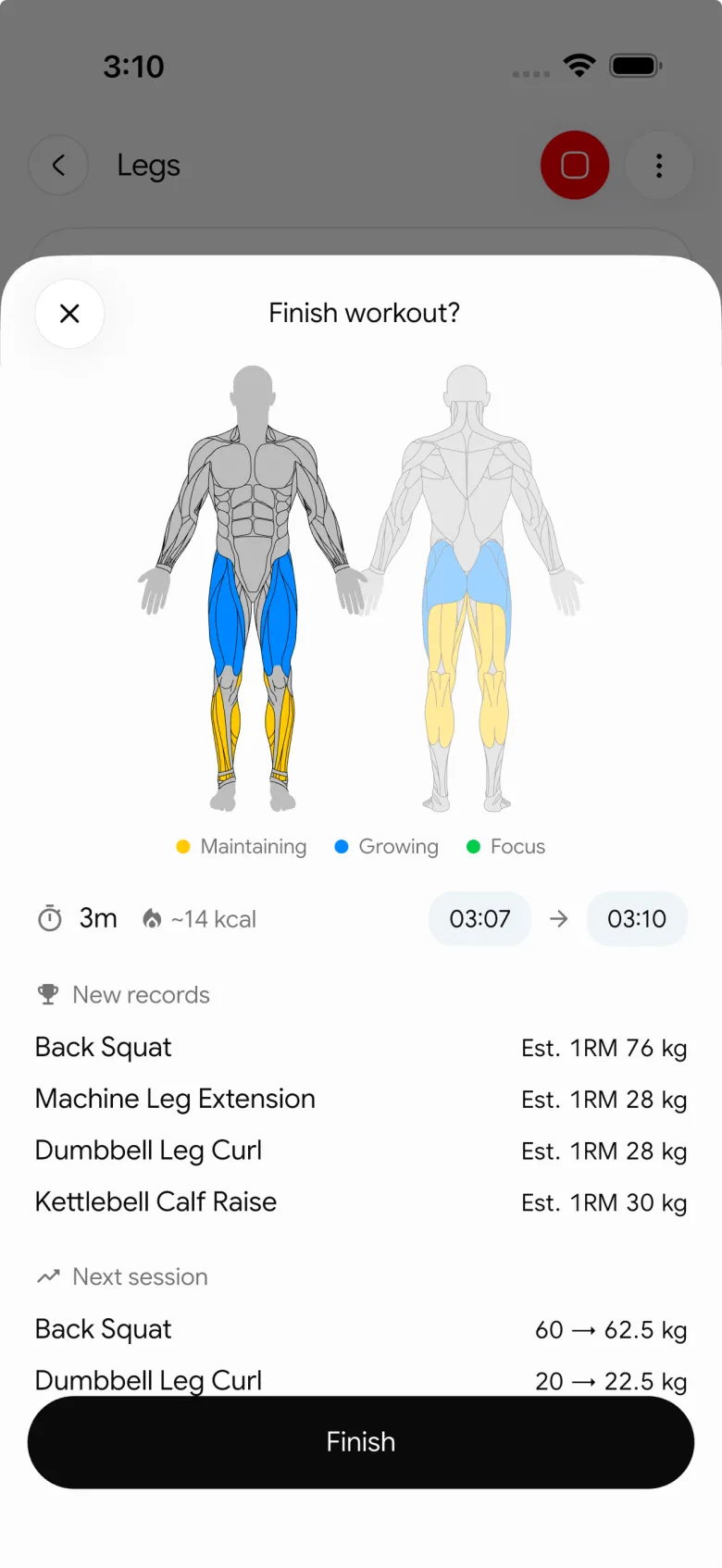
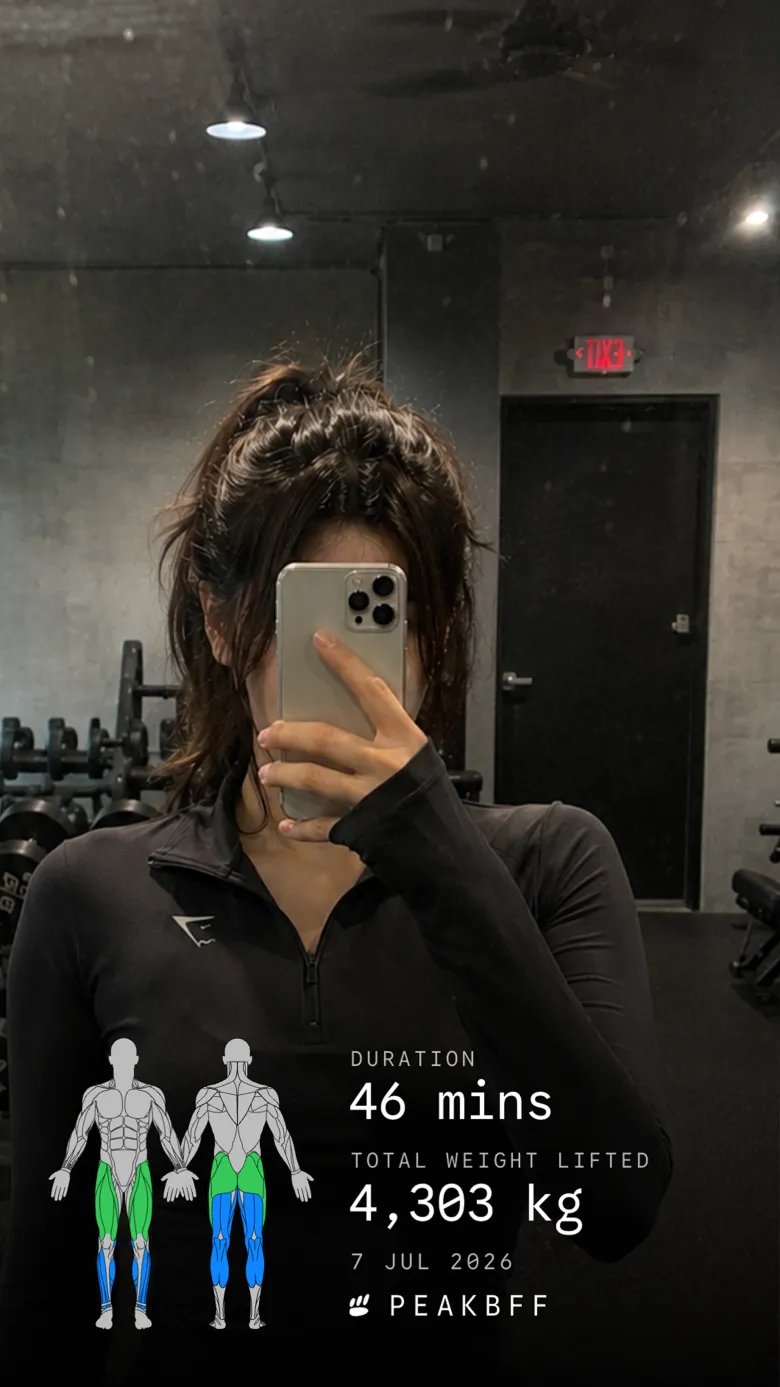
For a straightforward card, leave the background plain and review the recap. For a photo layout, add a photo, position it so the overlay stays legible, and export the image. For a video layout, choose a clip and wait for the export to finish before sharing. Then choose Instagram from the phone's share sheet and build the Story there.
PeakBFF does not publish the Story for you, promise reach, or create an in-app social feed. It gives you a recap tied to the actual session so the post and the workout history start from the same record.
If you are comparing apps for the broader job of video-backed gym recaps, see our best apps to share gym workout videos. For a recap that starts from a consistent workout record, the progressive-overload template can help you keep the set and rep side organised too.
What makes a workout recap worth sharing?
The most useful recap is one you will recognise next week. That usually means a named session, one specific highlight, and a visual you can read on a phone. Skip the pressure to make every workout look dramatic. The training record is still valuable even when it stays private.
Download PeakBFF on iOS or Android to keep a finished gym session and a shareable recap in the same routine.
More from PeakBFF
More app comparisons, fitness guides, and product notes.
Best Gym App to Find Exercise Alternatives by Muscle Group (2026)
Compare gym apps for finding a practical exercise alternative by muscle group, checking the movement, and keeping the swap clear in your workout log.
How to Create a Fair Gym Leaderboard With Friends: A 2-Week Template
Set up a friendly gym leaderboard with one clear metric, a short review date, and rules that keep the comparison useful rather than personal.
Best App to Log Myo-Reps and Drop Sets (2026)
Compare gym apps for recording linked myo-rep and drop-set follow-ups without losing the sets, reps, and load changes behind them.
How to Share a TikTok Workout to a Gym App: A Simple Review Template
Share a public TikTok workout to a gym app, review the imported draft with a practical checklist, and save only the routine you can actually use.
Best App to Review Weekly Gym, Protein, and Volume Progress (2026)
Compare weekly gym review apps for lifters who want completed workouts, protein, and training volume in one honest end-of-week recap.
How to Use Previous Workout Weights: A Simple Gym Log Template
Use previous workout weights as a reference, not a command. Copy this gym log template, work through an example, and keep your next session clear.